
APP Piano Practice Features
This page will guide you through all the features of the Piano Practice page and show you how to use them efficiently.
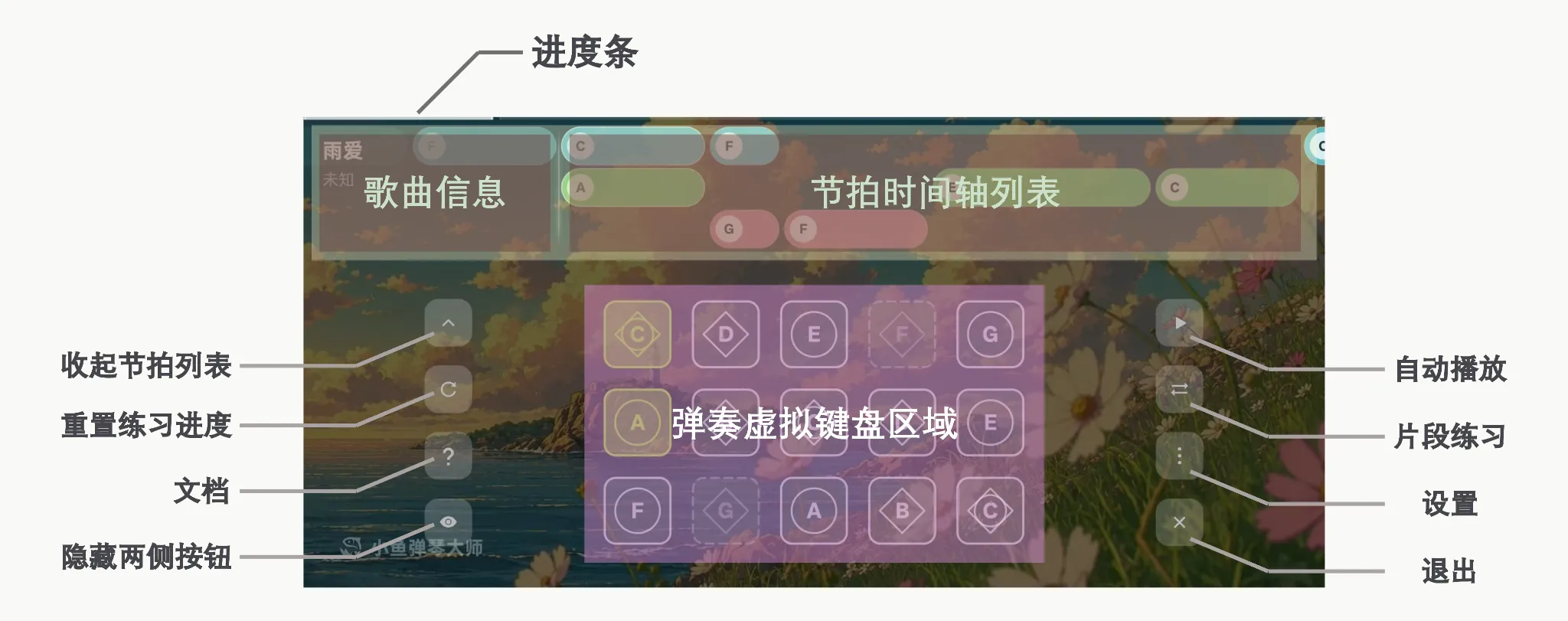
1. Interface Overview
2. How to Practice Sheet Music?
2.1. Search and Practice from the Practice Page
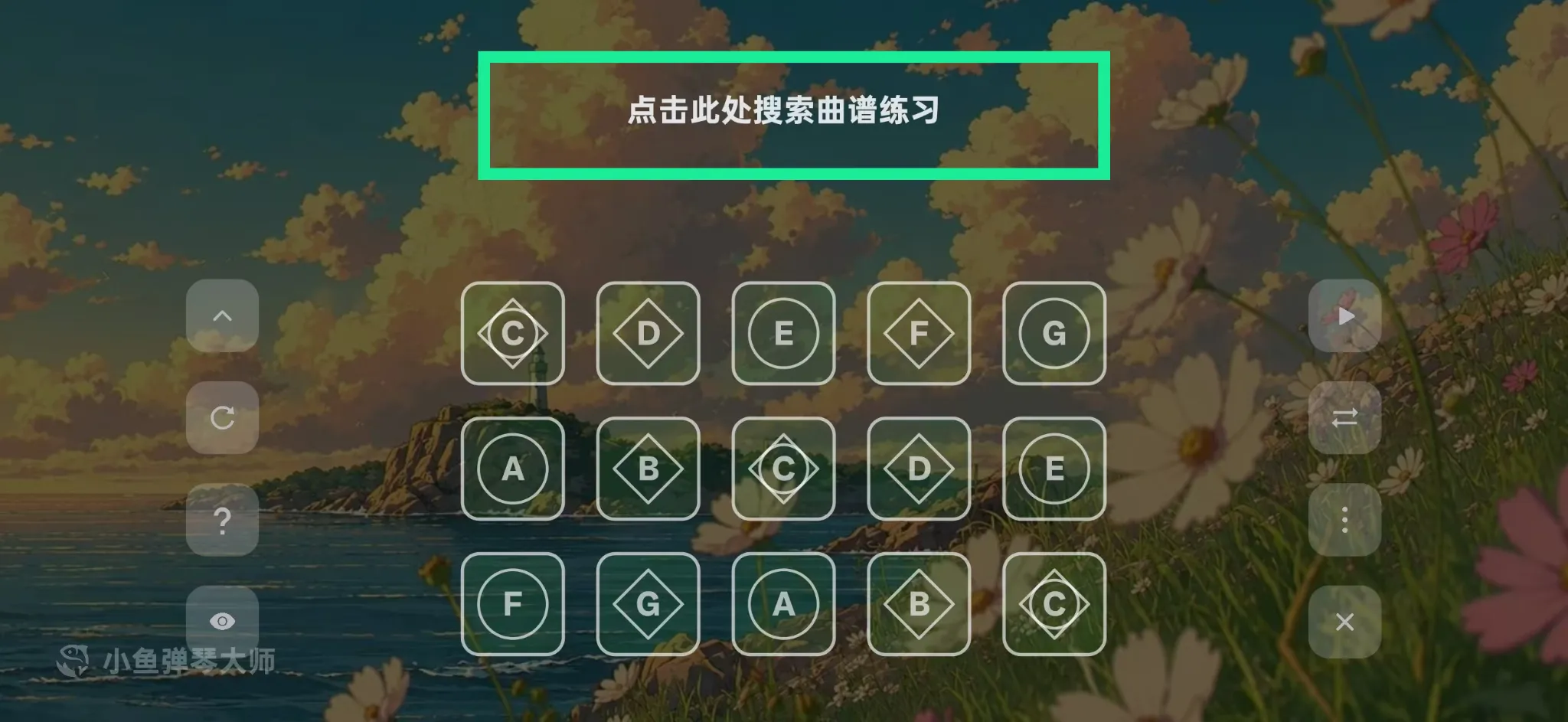
Click "Search Sheet Music"
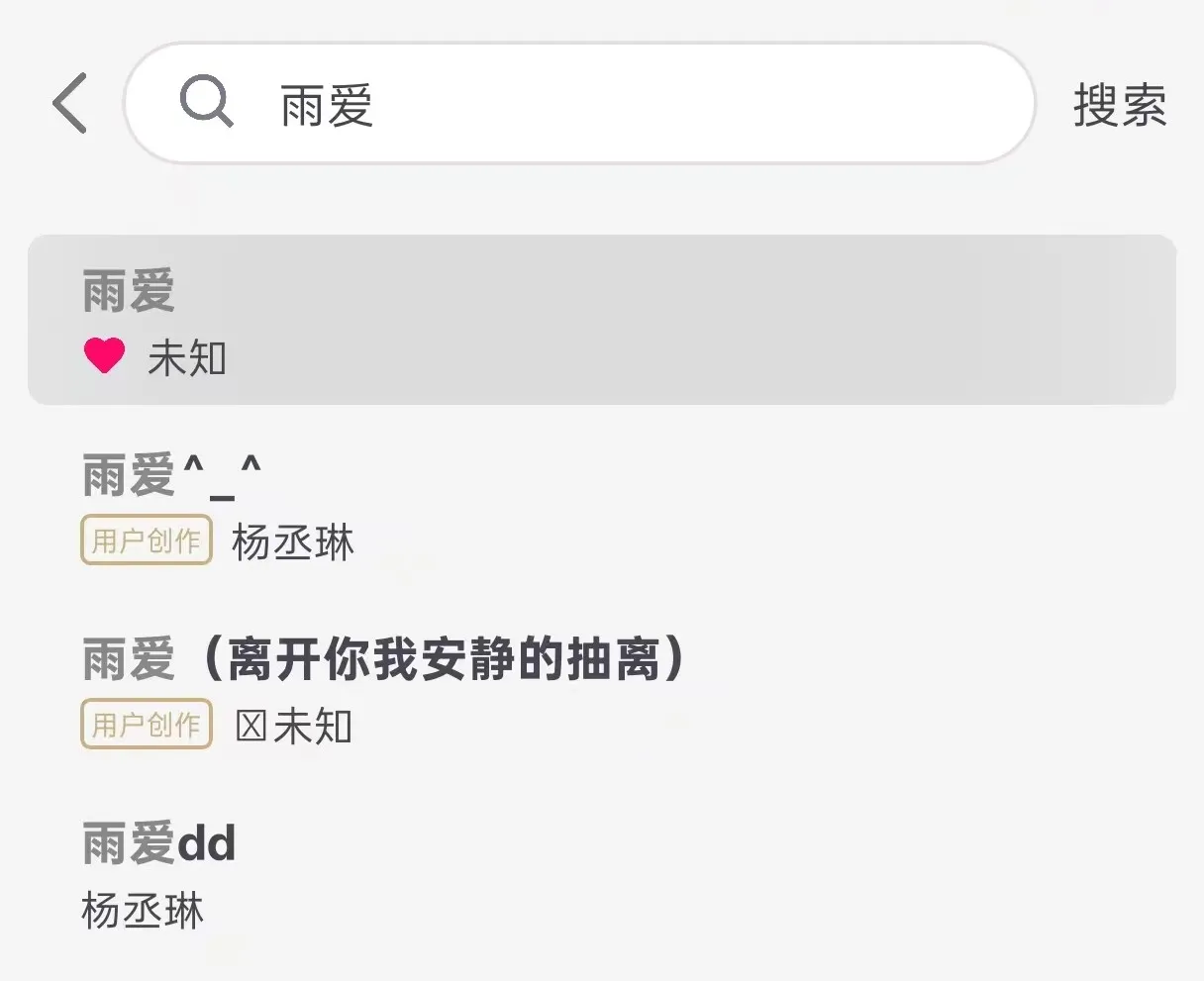
Select your desired sheet music
2.2. Practice via Sheet Music More Menu
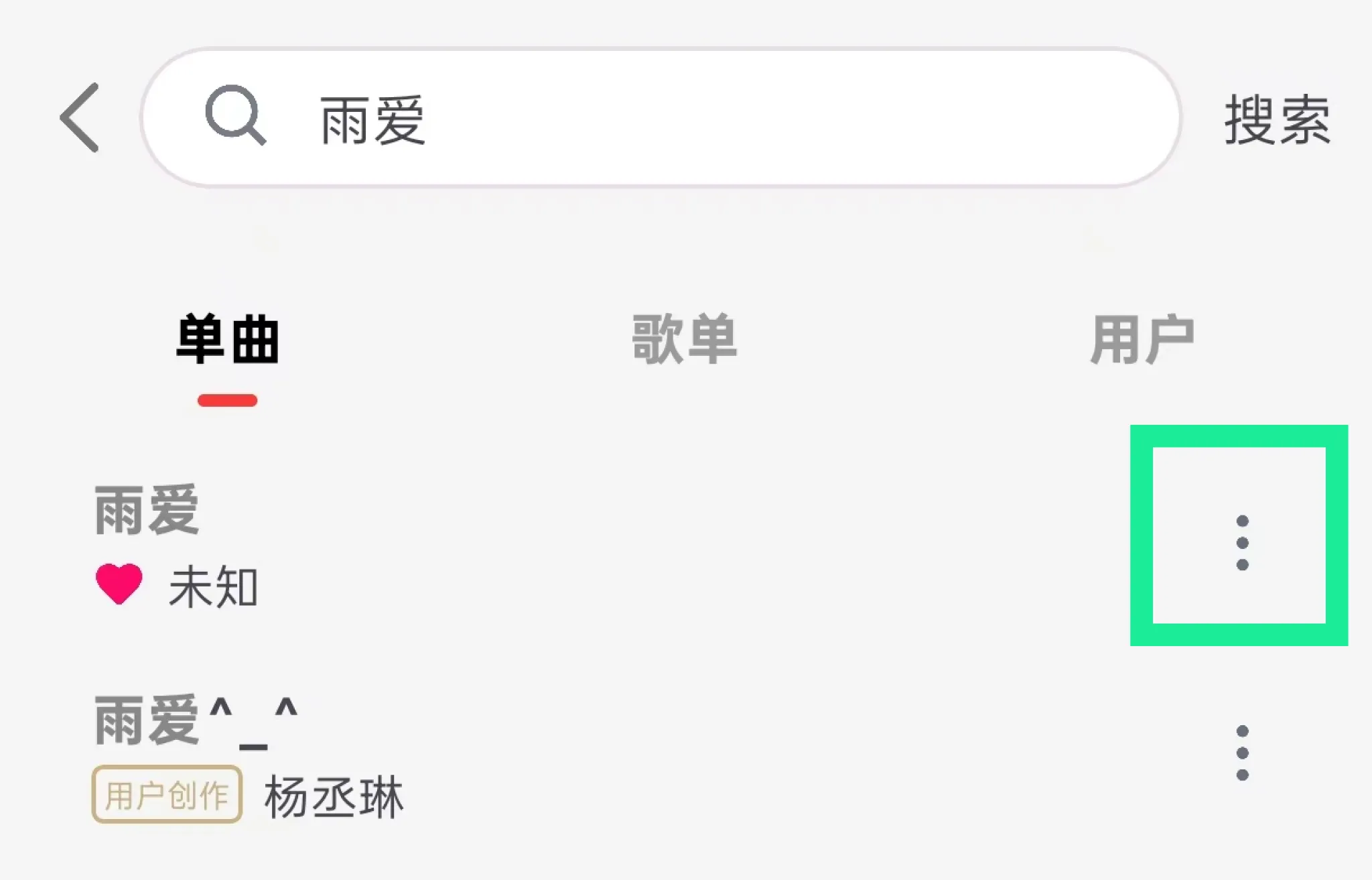
Click the menu on the right side of the sheet music
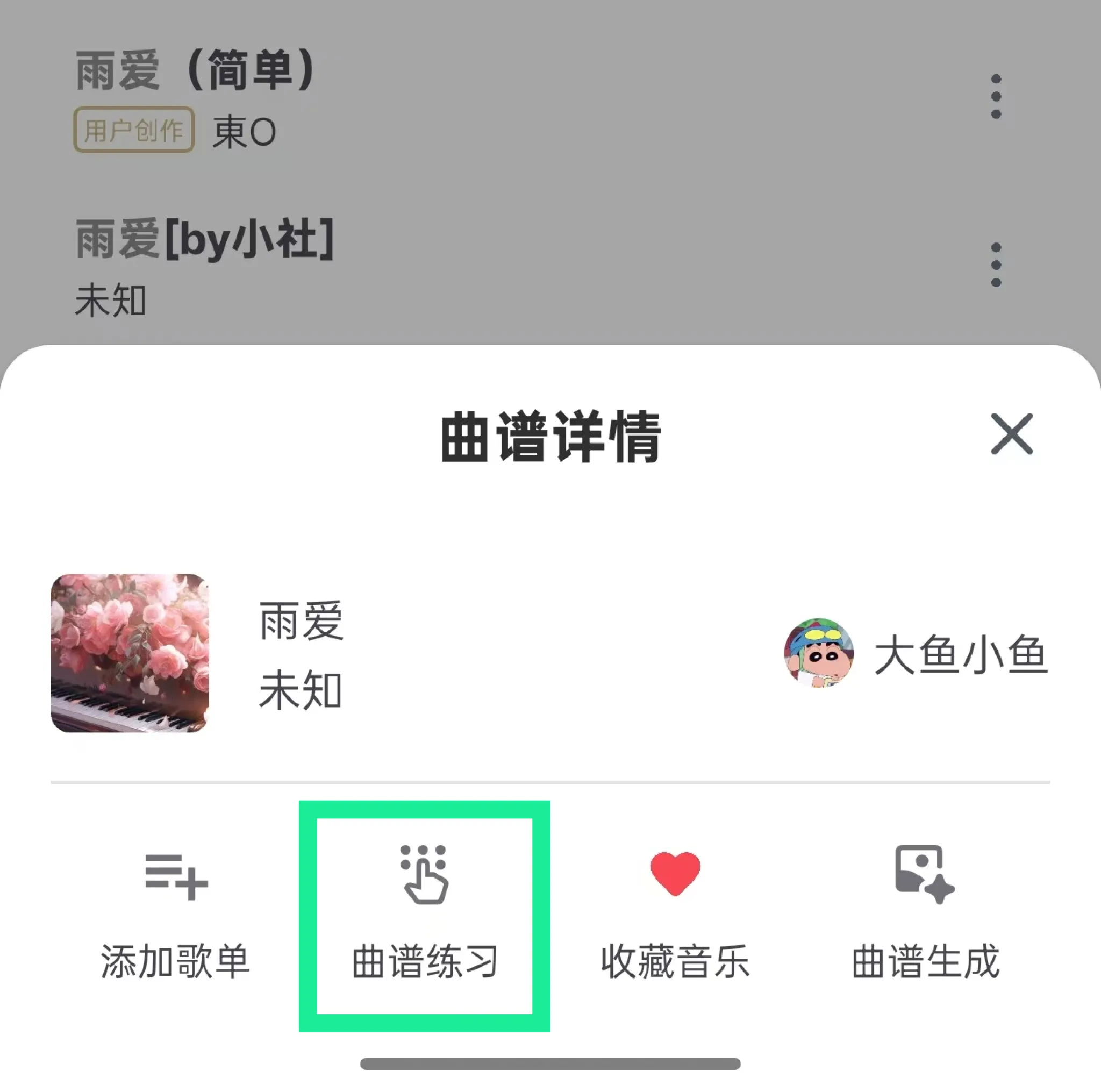
Click "Practice Sheet Music"
3. Sheet Music Beat Timeline (Rhythm List)
The rhythm list is divided into three rows. The first row corresponds to the first row of buttons on the keyboard below, the second row corresponds to the second row of buttons, and the third row corresponds to the third row of the keyboard. See the guide below:
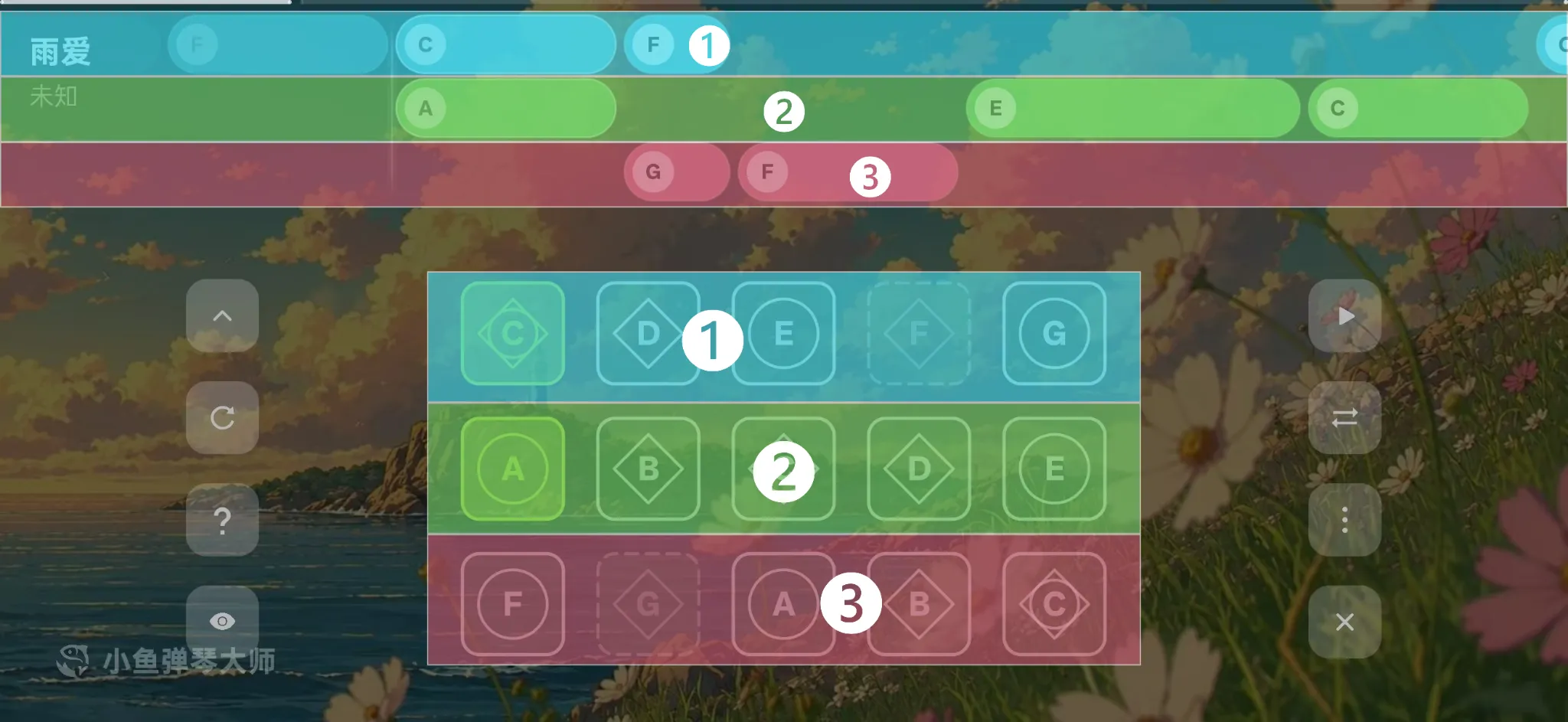
During practice, the key that needs to be pressed currently will be highlighted, and the corresponding note on the rhythm list will wait right before the starting line.
4. Practice Settings
Click the More Menu (···) on the right sidebar to access the layout settings:
4.1. Keyboard Layout and Custom Labels
Since device screens and finger sizes vary, the settings allow you to adjust the keyboard layout to its perfect state tailored for you.
4.1.1. Keyboard Layout
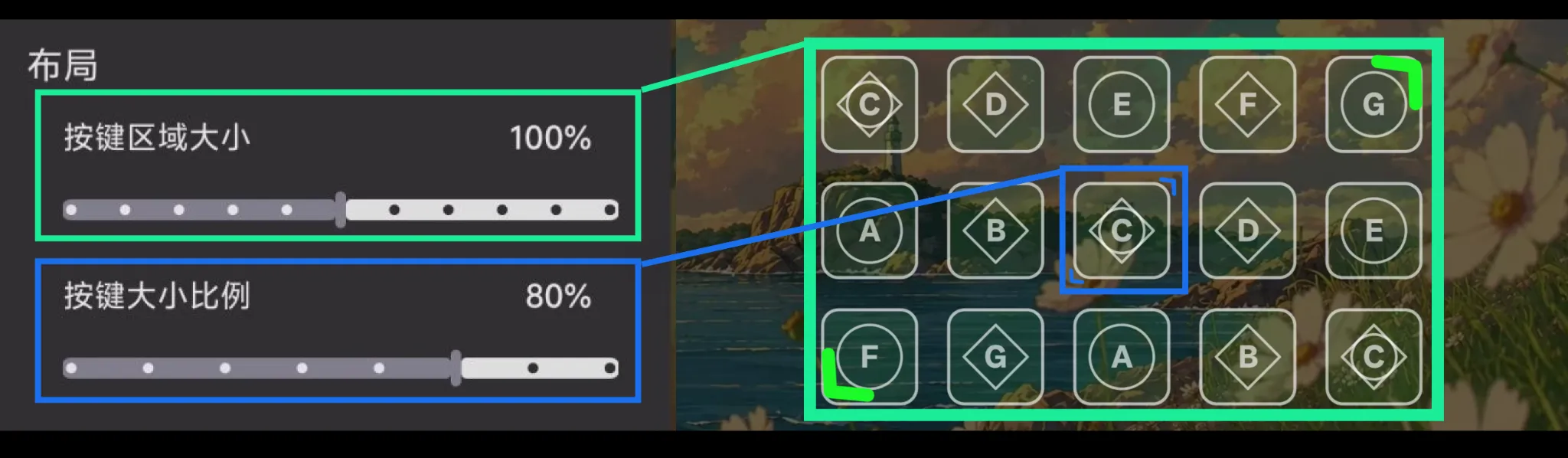
- Key Area Size: Adjust the vertical height proportion of the piano key area on the entire screen.
- Key Size Ratio: Fine-tune the width and proportion of each individual key.
4.1.2. Key Display Labels

- Key Display Labels: You can choose the type of note label displayed on the keys:
- Numbered Notation (1, 2, 3)
- English Letters (C, D, E)
5. Visual Hints and Animation Settings
To make practice more intuitive, a visual hint animation system is built into the features.
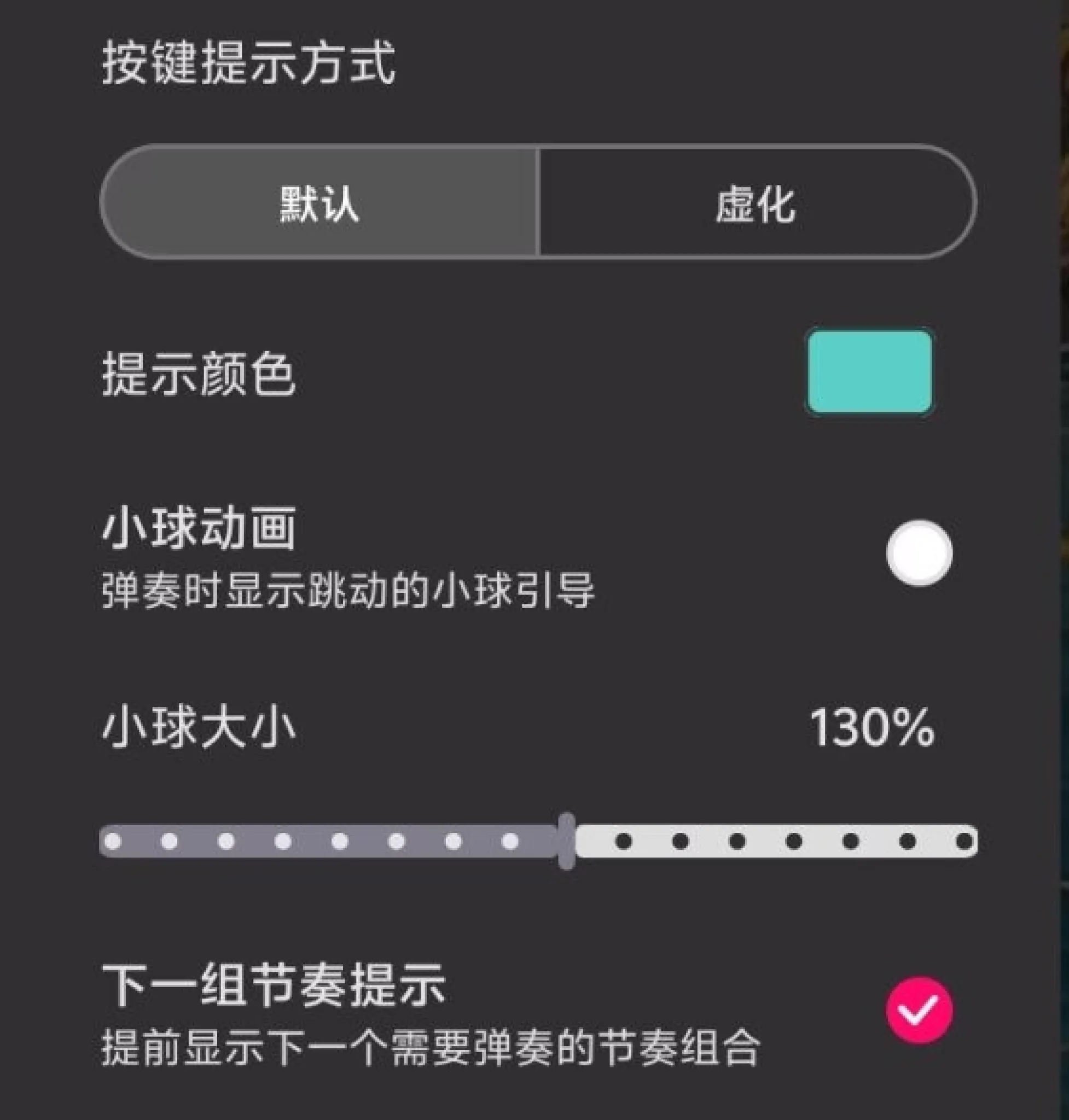
- Falling Ball Animation: Freely toggle the falling ball indicator on or off, and adjust the ball size. The falling ball drops along with the rhythm to guide your timing for pressing the key.
- Next Key Hint: When enabled, the keyboard will preview the next key you need to play.
- Key Hint Modes:
- Default: Displays a solid highlight color when a key is pressed or hinted.
- Faded: Uses a softer gradient highlight effect for a more elegant visual experience.
- Custom Hint Color: Click the color block to open the palette and customize the highlight color for the keys!
6. Sound and Tactile Feedback
- Instrument Switching: Open the More menu and click on the current instrument name (e.g., Piano). A bottom sheet will appear allowing you to freely switch between various high-quality instrument sounds.
- Haptic Feedback: Simulates the tactile physical feedback of a real instrument.
- Playback Speed Control: Use the - / + buttons in the menu to adjust the playback speed.