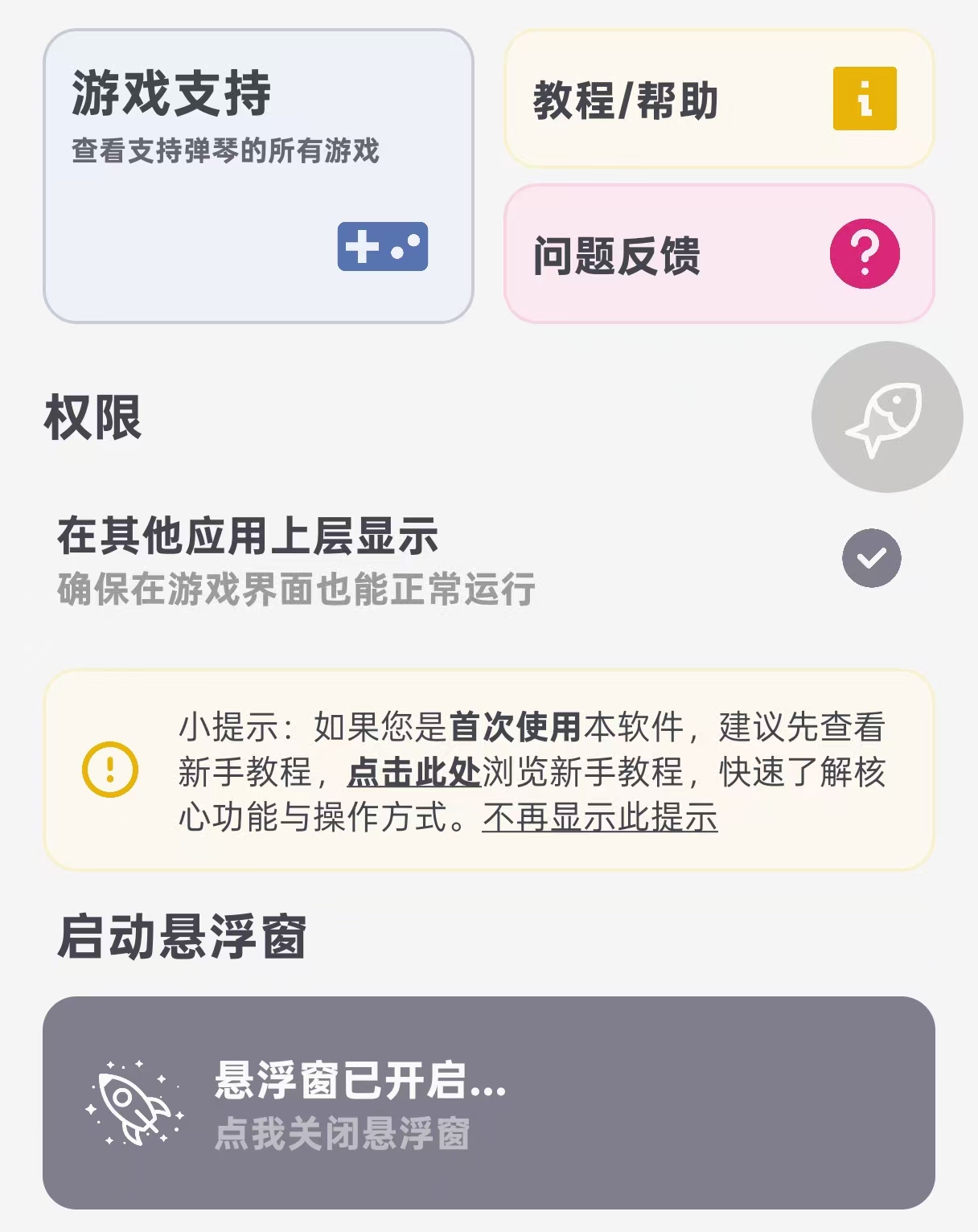
Shizuku/Root Accessibility Authorization
This method starts the accessibility service through Shizuku or Root authorization. After setup, you can use the app directly without manually enabling accessibility permission each time.
Note: The steps below are advanced settings. Continue only after you understand what they do. On non-root devices, Shizuku usually needs to be restarted after the device reboots.
When to Use This
- You want the app to start quickly and authorize accessibility automatically when used.
- The accessibility switch turns off by itself after you tap it.
- The accessibility list shows the app as restricted or unavailable.
- Floating window permission is enabled, but the feature still does not work.
Preparation for Shizuku or Root
- Install Shizuku, or use a rooted device.
- Enable Developer options and USB debugging. Skip this step on rooted devices.
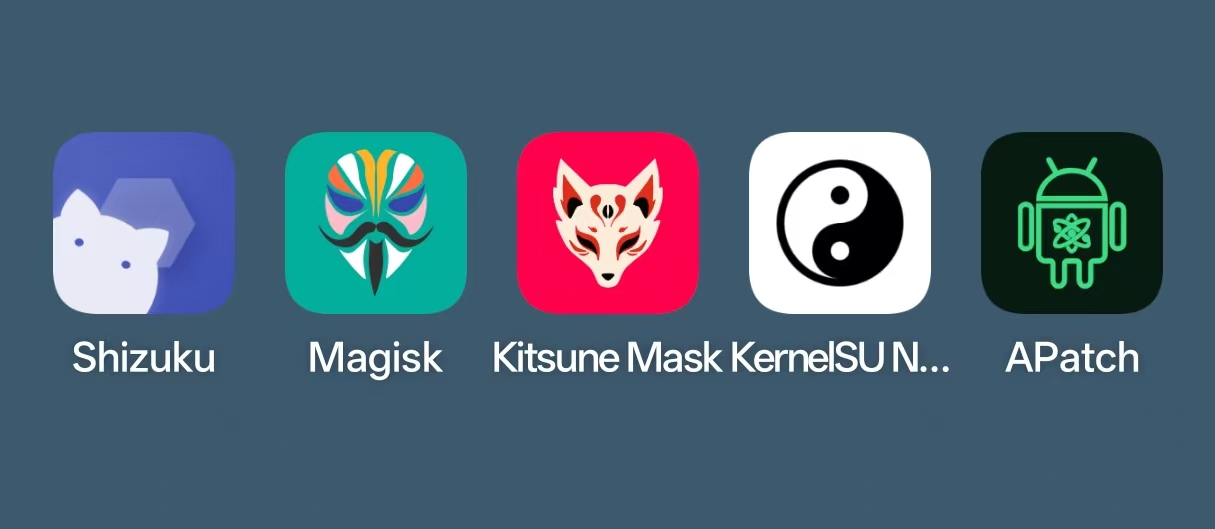
Method 1: Start with Root
- Open the root manager shown above and grant Root permission to Finelo.
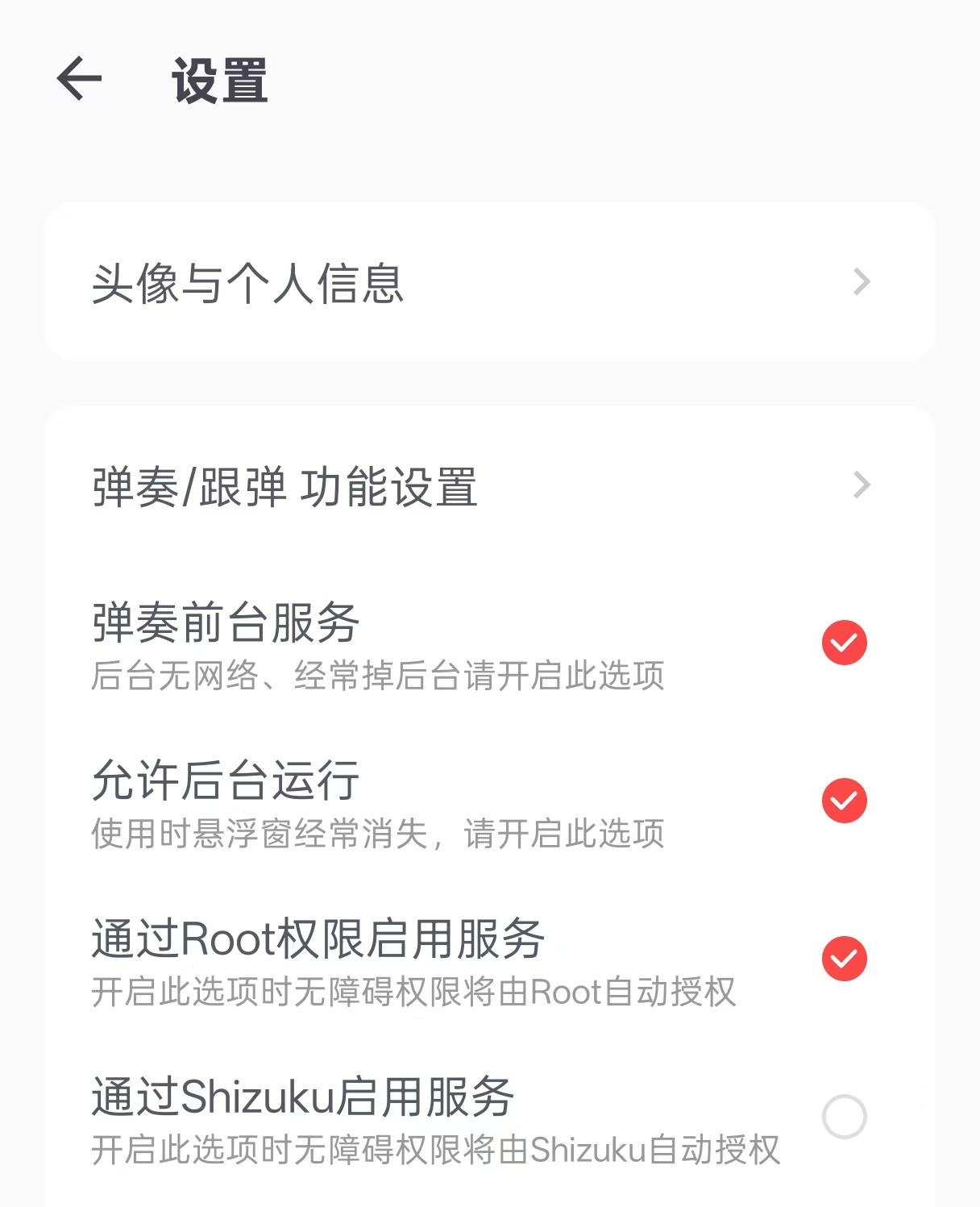
- In app settings, turn on Enable service with Root permission.
Method 2: Start with Shizuku
- For Shizuku setup, see
this guide. This article does not repeat those steps. - After enabling the Shizuku service, open the Settings page in Finelo.
- In app settings, turn on Enable service with Shizuku permission.
Result
- On the app launch page, the manual accessibility switch will no longer appear. You can use the feature directly after opening the app.