No results found
Finelo
Finelo
HomeOfficial ChannelDownloadFeatures & Help
简体中文
English
HomeDownloadOfficial ChannelFeatures & Help
简体中文
English
Quick Start
  • Quick Start
FAQ
  • Floating Window Often Fails to Load or Has No Background Network
  • OnePlus/OPPO/realme Accessibility Cannot Be Enabled
  • Restricted Accessibility Permission Settings
  • vivo/iQOO Playing Has No Effect and Progress Bar Stutters
Feature Tutorials
  • AI Transcription and Score Recognition
  • One-Tap Follow Play
  • Playing Features and Settings
  • Quick Key Mapping
  • Score Generation and Style
  • Score Import Format
  • Shizuku/Root Accessibility Authorization

Quick Key Mapping

Step-by-Step Guide

Start the floating window first, then complete key mapping in floating window settings as shown below:
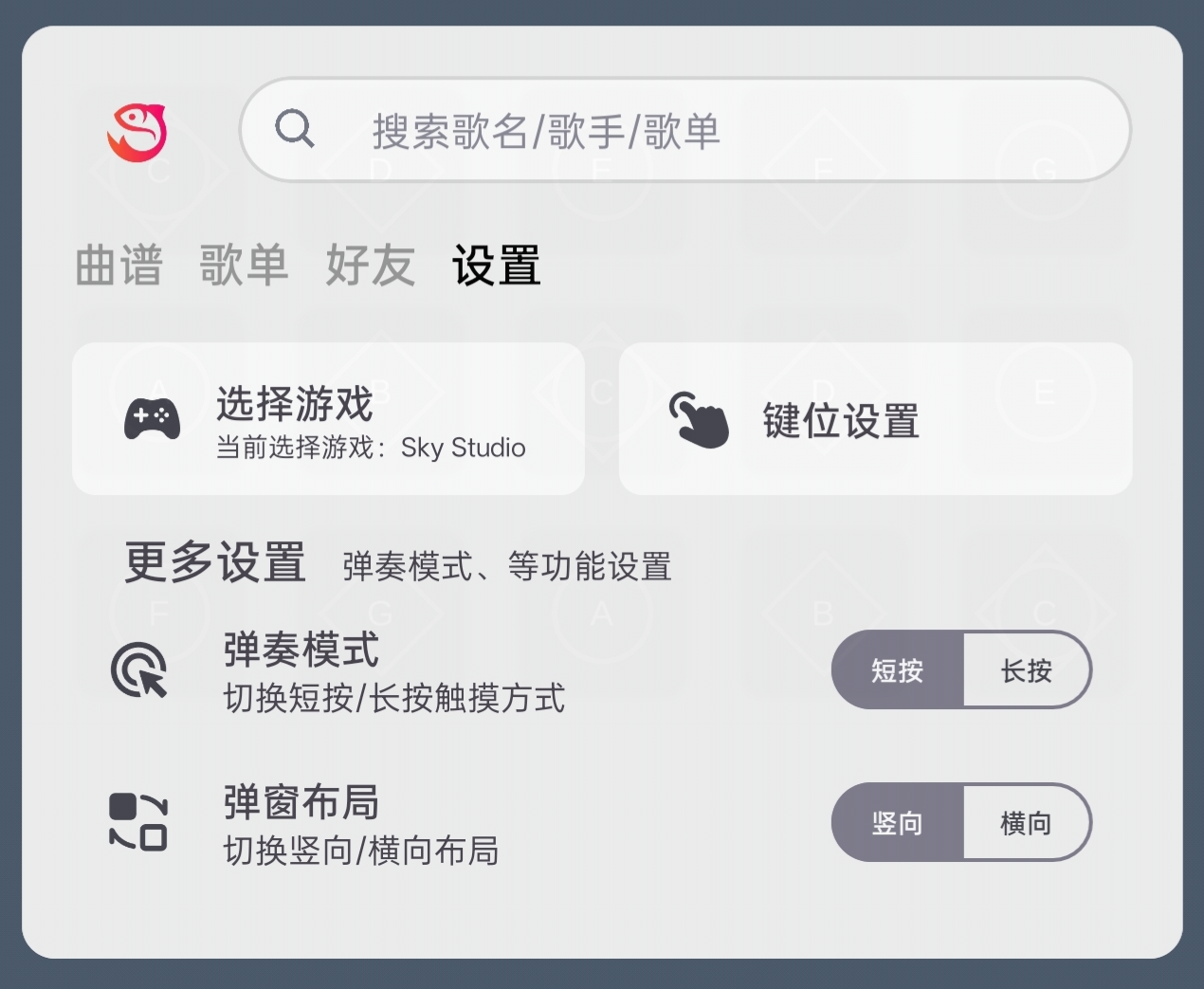
Step 1

Tap key mapping settings

Step 2

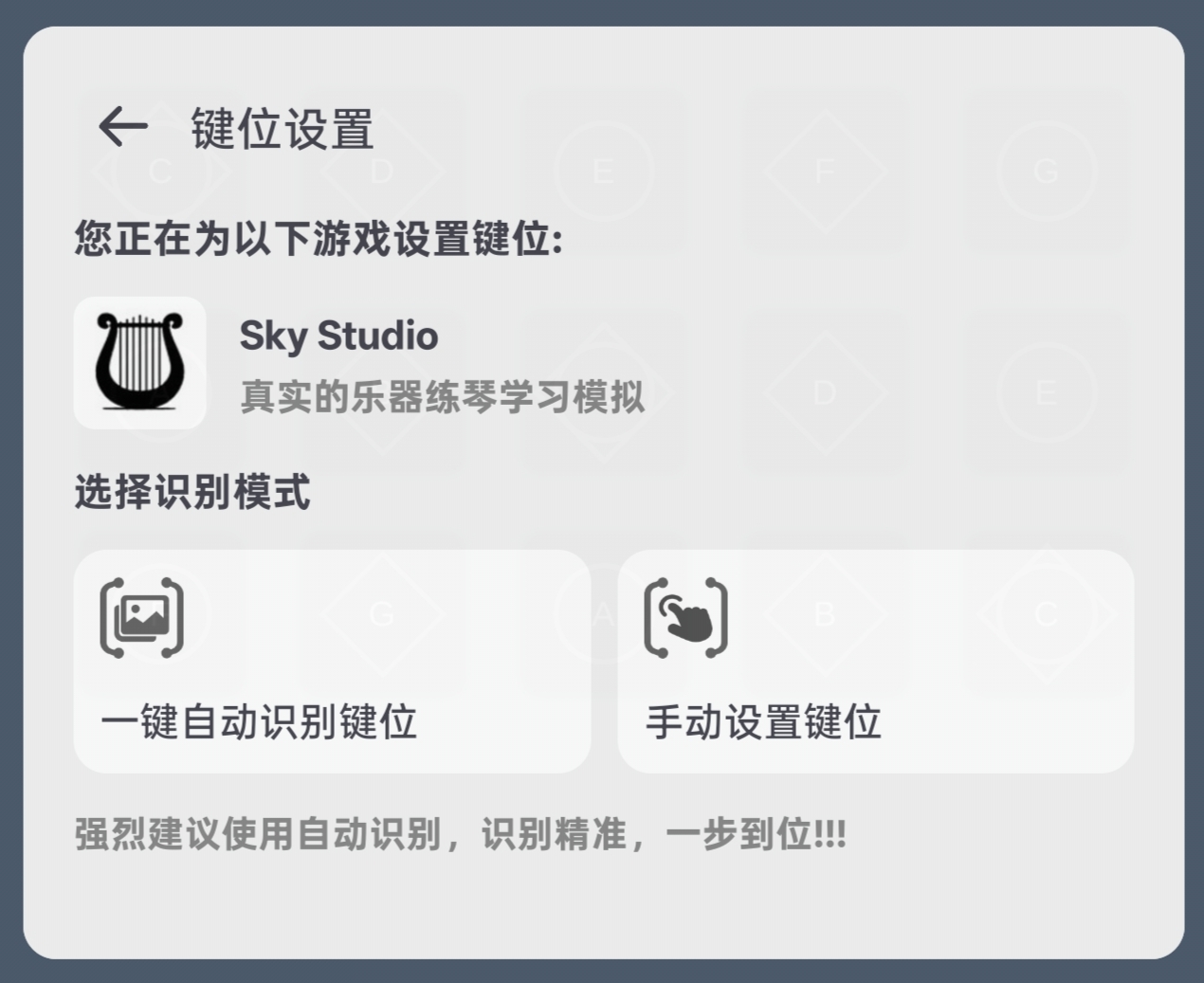
Choose a key mapping method

Auto Key Recognition

To use auto key recognition, follow the steps below:
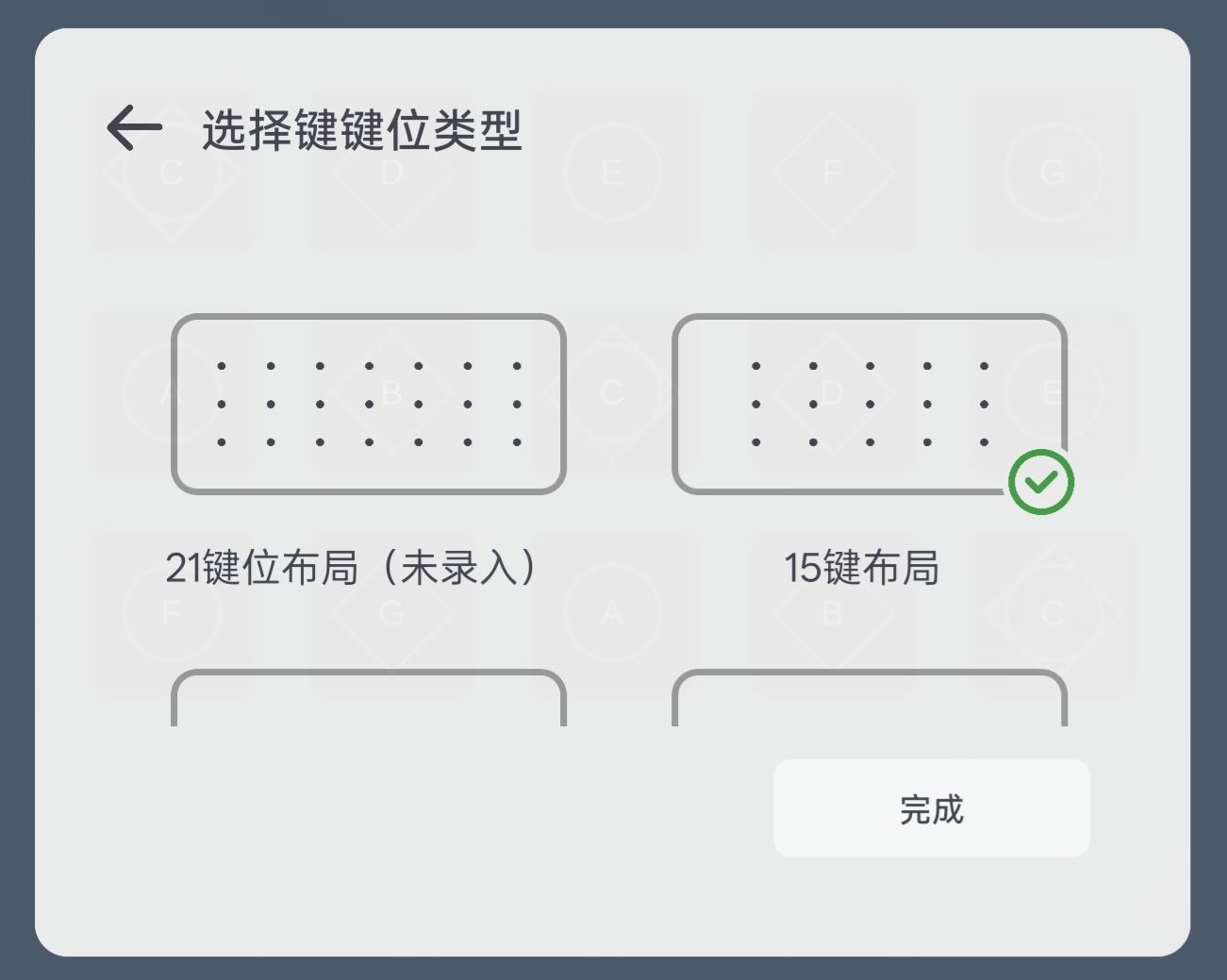
Step 1

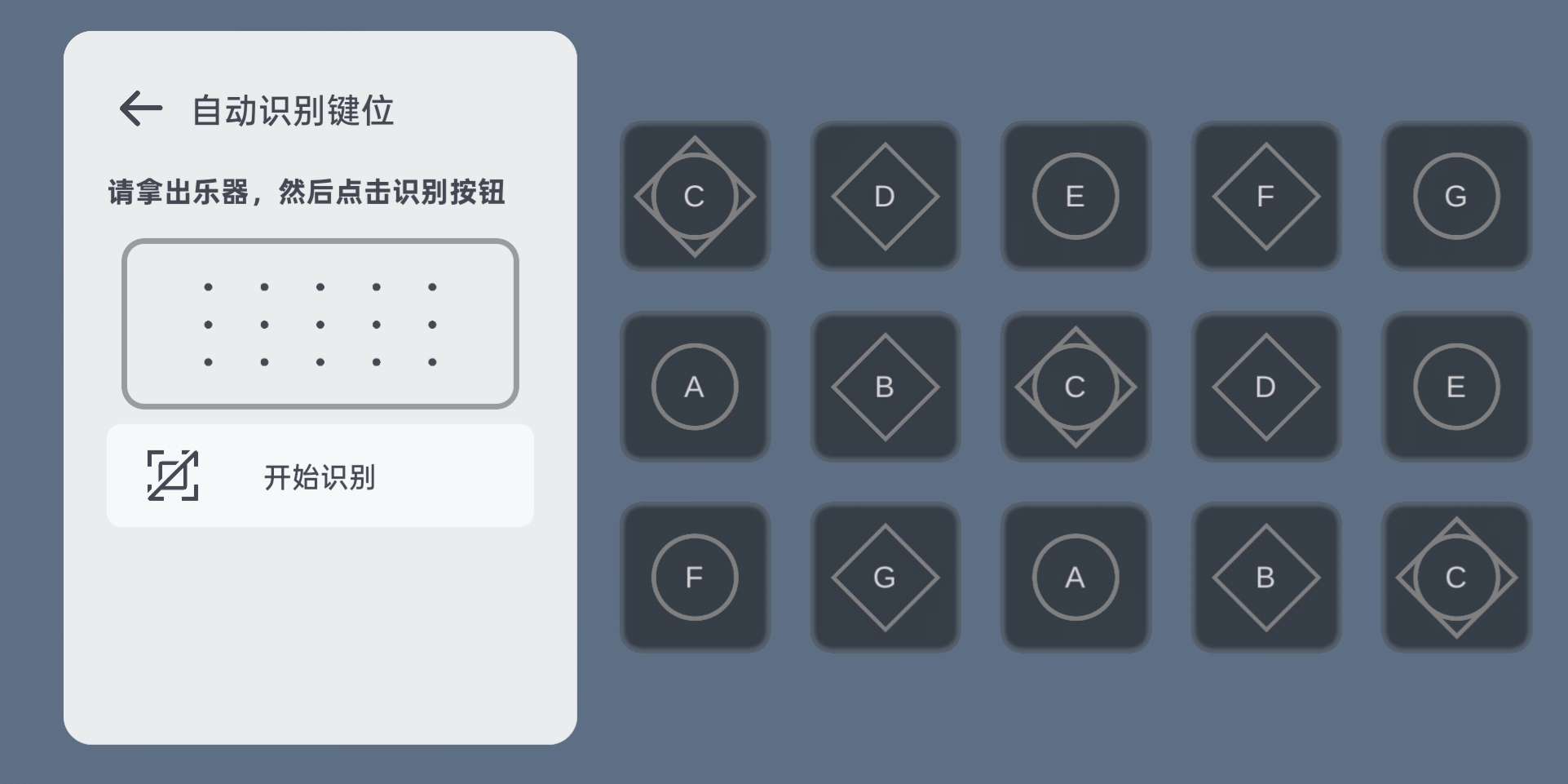
Choose the key layout for the game

Step 2

Tap Start recognition

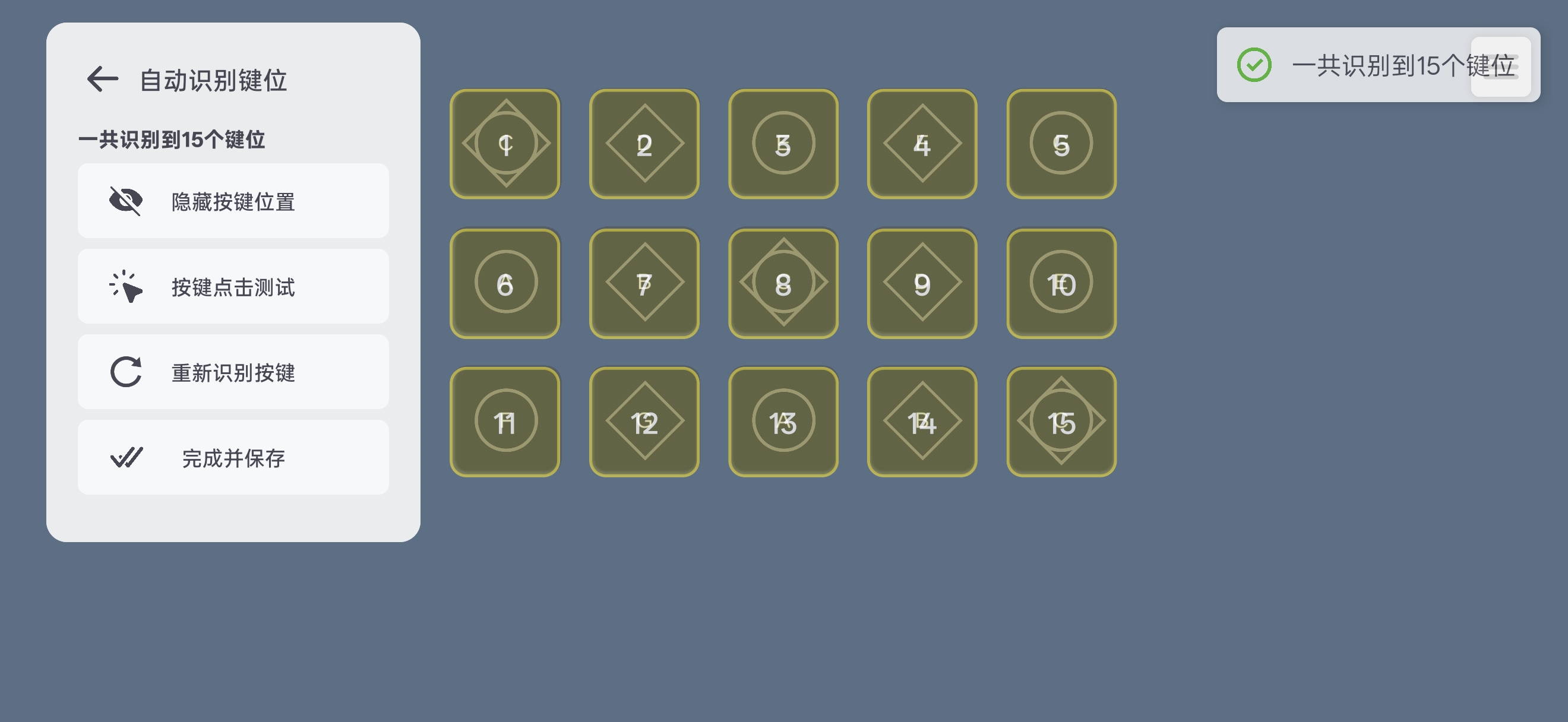
Step 3

Save after recognition succeeds

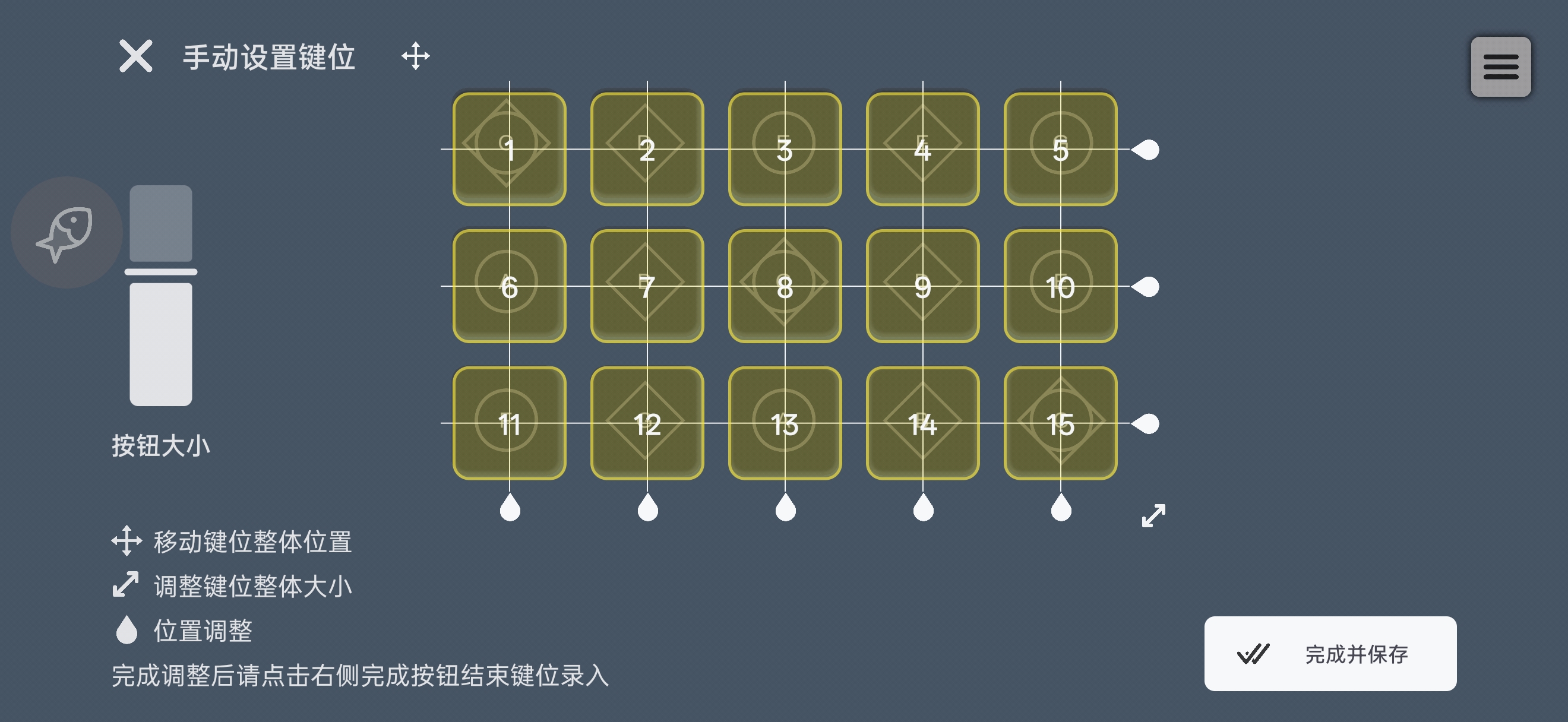
Manual Key Mapping

To set keys manually, follow the steps below:

Step 1

Choose the key layout for the game

Step 2

Adjust key positions to match and save

On this page
  • Step-by-Step Guide
  • Auto Key Recognition
  • Manual Key Mapping
Quick Start
  • Quick Start
FAQ
  • Floating Window Often Fails to Load or Has No Background Network
  • OnePlus/OPPO/realme Accessibility Cannot Be Enabled
  • Restricted Accessibility Permission Settings
  • vivo/iQOO Playing Has No Effect and Progress Bar Stutters
Feature Tutorials
  • AI Transcription and Score Recognition
  • One-Tap Follow Play
  • Playing Features and Settings
  • Quick Key Mapping
  • Score Generation and Style
  • Score Import Format
  • Shizuku/Root Accessibility Authorization