OnePlus/OPPO/realme Accessibility Cannot Be Enabled
This issue may happen on some systems. For example, on ColorOS, the accessibility switch may close automatically right after you turn it on. Try the following methods.
Method 1: Disable Permission Monitoring
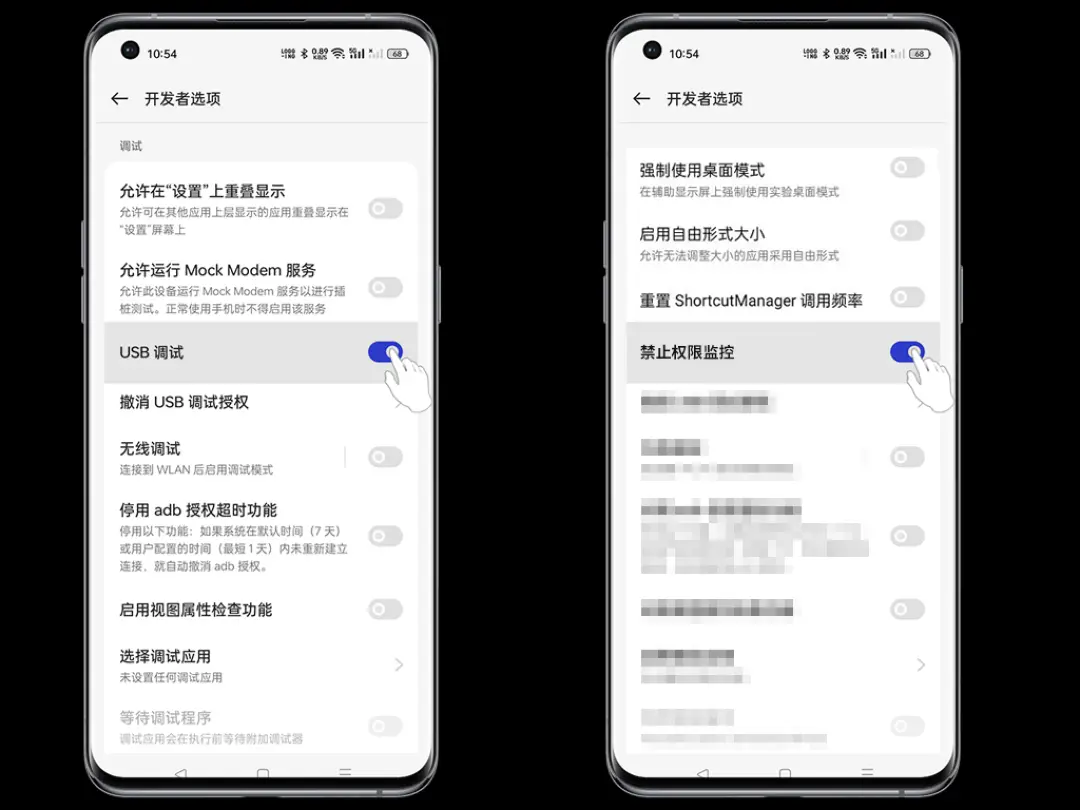
Open Settings > About device (About phone) > Version information > Version number, then tap the version number several times to enable Developer options.
In Developer options, turn on Disable permission monitoring, then reinstall the app or restart the app and try again.
Method 2: Reinstall and Change the Installation Method
Uninstall the app first.
Then find the installer in the phone's built-in file manager and install it again. After installation, do not open the app. Go to Accessibility, find the app, and enable it.

Method 3: Use Shizuku or Root
If the methods above still do not solve the issue, try authorizing accessibility permission through this method.
Several authorization methods are available. See the detailed guidehere.